Every week, people lose access to Facebook pages, Instagram accounts and email inboxes they have spent years building. In many cases the cause is the same: a stolen or guessed password, and nothing else standing in the way. Two-factor authentication, often shortened to 2FA: adds that missing barrier.
What two-factor authentication means
Security professionals talk about three types of proof:
- something you know (a password or PIN),
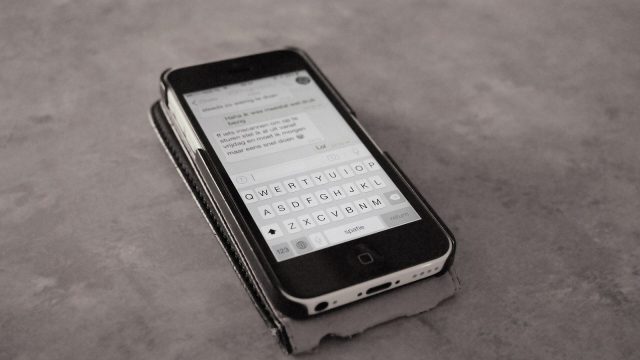
- something you have (your phone or a security key),
- something you are (a fingerprint or face).
Two-factor authentication requires two different types. Even if a criminal steals your password through a fake login page or a data breach, they still need your phone or key to get in.
The main 2FA methods, compared
| Method | How it works | Security |
|---|---|---|
| SMS code | A six-digit code is sent by text message. | Basic. Vulnerable to SIM-swap fraud and phishing, but far better than a password alone. |
| Authenticator app | An app on your phone generates a new code every 30 seconds. | Good. Works offline and is not tied to your phone number. |
| Push approval | Your phone shows “Is this you trying to sign in?” | Good, if you never approve a request you did not start. |
| Passkey | Your device confirms it is you with a fingerprint, face or PIN; no code to type. | Very strong and resistant to phishing. |
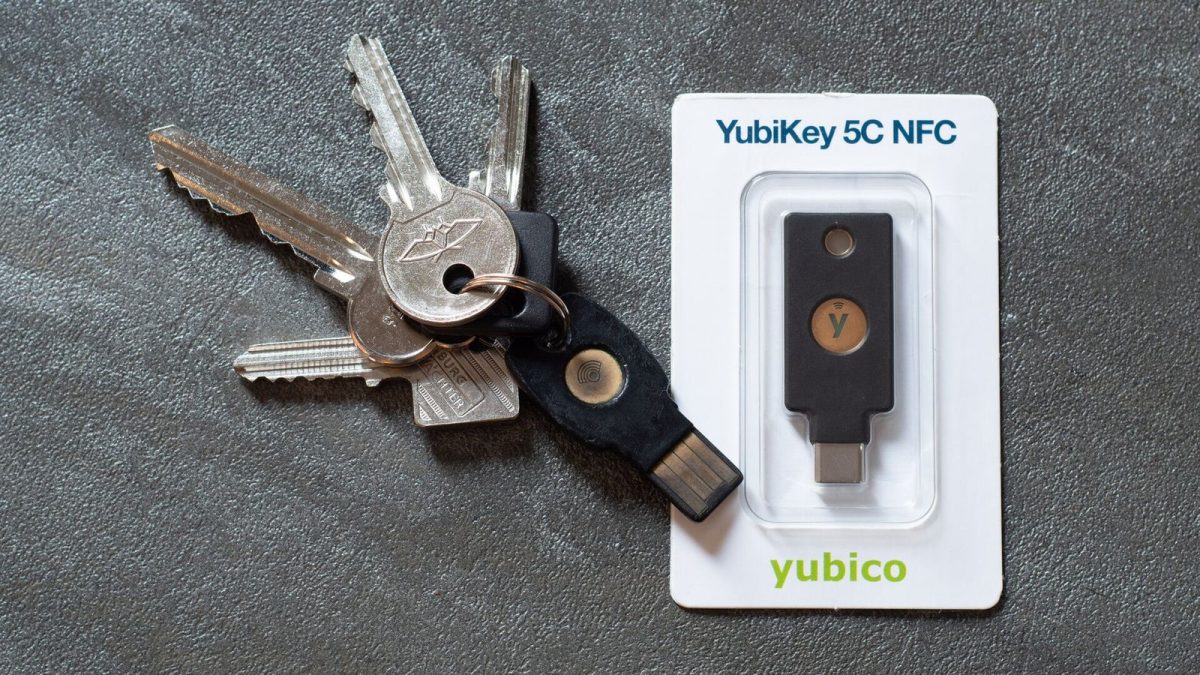
| Hardware security key | A small USB/NFC key you tap to sign in. | Strongest; ideal for business and high-value accounts. |
Step-by-step: turning on 2FA
The menus differ between services, but the process is broadly the same everywhere:
- Open security settings. Look for “Security”, “Password and security”, “Sign-in & security” or “Accounts Center”.
- Find two-factor or 2-step verification and choose to turn it on.
- Pick a method. Choose an authenticator app if offered. Scan the QR code shown on screen with the app.
- Confirm. Type the code the app shows to prove it works.
- Save backup codes. Download or write down the one-time recovery codes and store them somewhere safe, not only on the same phone.
- Add a second method where possible, such as a backup phone number or a second security key.
Don’t lock yourself out: before you change or reset your phone, move your authenticator to the new device (many apps offer an export or cloud backup) and check that your backup codes are still to hand.
Which accounts to protect first
- Your main email. Whoever controls your email can reset almost every other password.
- Social media and pages you manage: especially business pages with followers and ad accounts.
- Banking and payment apps (most already require strong authentication).
- Cloud storage with photos and documents.
- Password manager, if you use one.
Common scams that target 2FA
- “Send me the code” messages. A friend’s hacked account writes: “I sent you a code by mistake, can you forward it?” It is a trick to take over your account. Never share a login code with anyone.
- Fake copyright or “page will be deleted” warnings. Messages claiming your page violated rules, with a link to a login page. Always open the app or site directly instead of tapping the link.
- Push fatigue. Repeated sign-in prompts sent in the hope you will tap “Yes” to make them stop. If you get prompts you did not request, deny them and change your password.
Other habits that help
- Use a different password for every important account; a password manager makes this easy.
- Keep your phone’s operating system and apps updated.
- Review “where you’re logged in” lists and log out of devices you don’t recognise.
- Add recovery email and phone details, and keep them current.
Two-factor authentication takes about five minutes per account to set up. It is one of the most effective protections available to ordinary users, and one of the easiest to forget until it is too late.
Sources and further reading: official help centres of Google, Meta and Apple on 2-step verification and passkeys; guidance from national cybersecurity agencies such as CISA (United States) and NCSC (United Kingdom).